Imperial Gaming iOS App: How to Install on iPhone in the Philippines
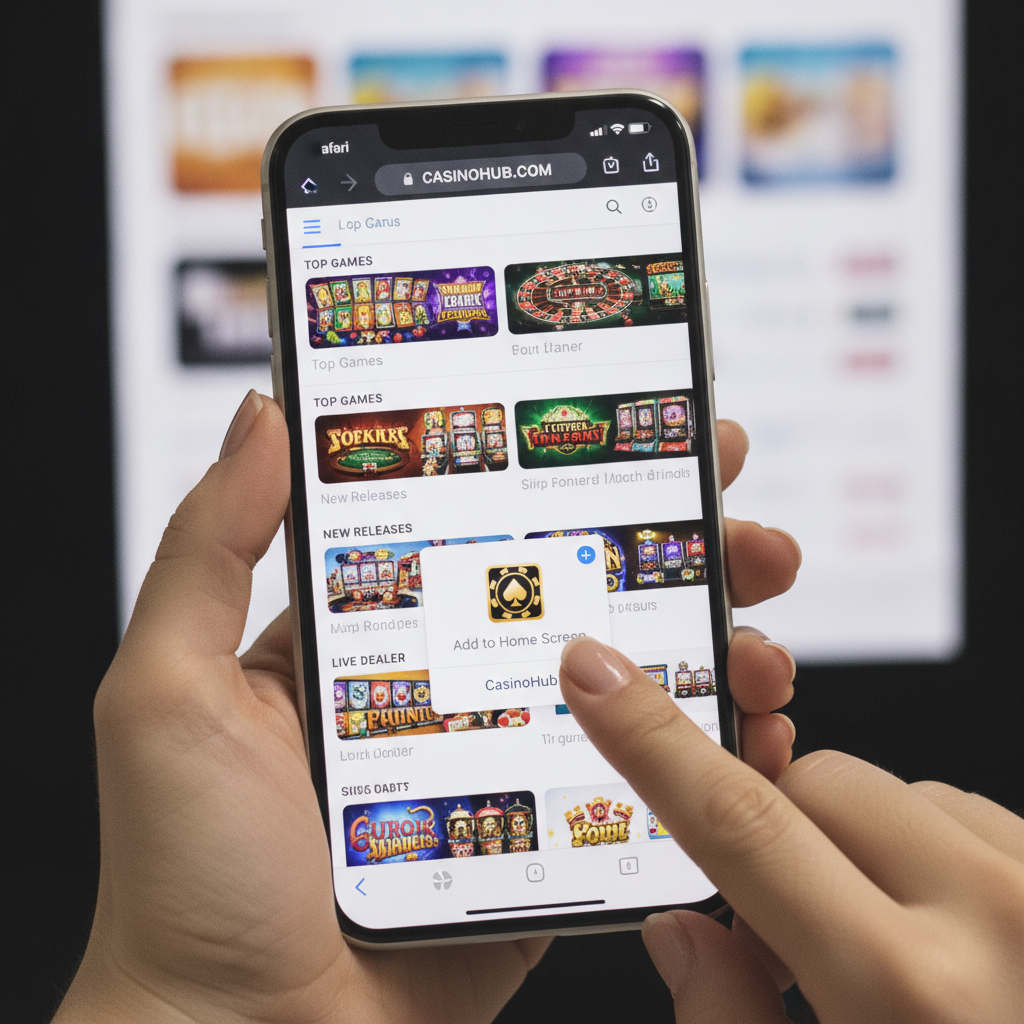
Whether Imperial Gaming Offers a Native iOS App or Web-App Shortcut
Imperial Gaming does not currently distribute a native iOS app through the Apple App Store. Instead, the platform provides an iOS-optimized mobile website that works seamlessly in Safari and other iPhone browsers. Filipino players can access the full range of slots, live dealer games, sports betting, and bingo directly through their mobile browser without downloading a separate application.
Because Apple's App Store policies restrict real-money casino and sportsbook apps in the Philippines, most online gaming platforms—including Imperial Gaming—rely on responsive web design and progressive web app (PWA) technology. This approach delivers an app-like experience: fast loading, smooth navigation, and a layout optimized for the smaller iPhone screen.
The practical solution for iPhone users is to add a home-screen shortcut to the Imperial Gaming mobile site. This shortcut behaves much like a native app, launching the site in full-screen mode with a dedicated icon on your home screen. You get quick access to deposits, withdrawals, game lobbies, and your account without opening Safari and typing the URL every time.
Adding the Imperial Gaming Mobile Site to Your iPhone Home Screen
Setting up a home-screen shortcut is straightforward and takes less than a minute. Follow these steps on any iPhone running iOS 13 or later:
Step 1: Open Safari and navigate to the Imperial Gaming mobile site.
Type the Imperial Gaming URL into Safari's address bar or tap a link from a trusted source. Make sure you land on the official mobile site; check the domain carefully to avoid phishing copies.
Step 2: Tap the Share icon.
At the bottom of the Safari window (on most iPhones) or at the top (on some models), you'll see a square icon with an upward arrow. Tap it to open the Share menu.
Step 3: Scroll down and select "Add to Home Screen."
In the Share menu, scroll through the options until you see "Add to Home Screen." Tap it. Safari will display a preview of the shortcut icon and suggest a name, typically "Imperial Gaming" or the site's title tag.
Step 4: Confirm the shortcut name and tap "Add."
You can edit the name if you prefer something shorter, like "IG Casino." Once you're satisfied, tap "Add" in the top-right corner. The icon will appear on your iPhone home screen alongside your other apps.
Step 5: Launch the shortcut.
Tap the new icon to open Imperial Gaming in full-screen mode. Safari's address bar and navigation buttons will be hidden, giving you a cleaner, app-like interface.
This shortcut does not install any files or take up significant storage beyond a small cache. It simply bookmarks the mobile site and opens it in a streamlined view. You can delete the icon anytime by long-pressing it and selecting "Remove from Home Screen."
Logging In and Navigating the iOS-Optimized Mobile Interface
Once you've added the shortcut, logging in and moving through the Imperial Gaming platform on your iPhone is efficient and intuitive.
Logging In
Tap the home-screen icon to launch the site. On the welcome screen, you'll see a "Login" or "Sign In" button, usually in the top-right corner or prominently placed in the center. Tap it, then enter your registered mobile number or email and your password. If you've enabled biometric login or password autofill in iOS Settings, Safari can suggest your saved credentials or use Face ID or Touch ID to speed up the process.
After logging in, you'll land on the main lobby. Imperial Gaming's mobile site remembers your session, so you typically won't need to re-enter your credentials every time unless you log out manually or clear Safari's cache.
Navigating the Game Lobbies
The iOS interface organizes games into clear categories: Slots, Live Casino, Sportsbook, and Bingo. Swipe or tap through the menu tabs at the top or bottom of the screen. Each lobby displays thumbnail previews of games, and you can filter by provider, popularity, or new releases. Tapping a game tile launches the game in full-screen mode, optimized for portrait or landscape orientation depending on the title.
Making Deposits and Withdrawals on iPhone
Access your account dashboard by tapping the menu icon (often three horizontal lines) or your username. From there, select "Deposit" or "Withdrawal." Imperial Gaming integrates GCash, Maya, InstaPay, and PESONet for peso transactions. The mobile interface guides you through each step: choosing your payment method, entering the amount, confirming with your e-wallet PIN or bank app, and reviewing the transaction status.
Because the site is browser-based, GCash and Maya transactions open in a new tab or redirect to the e-wallet app, then return you to Imperial Gaming once complete. Keep Safari running in the background and avoid force-closing it during a deposit or cashout to prevent session errors.
Checking Transaction History and Account Details
Your account menu also includes sections for transaction history, active bets, bonus status, and verification documents. All these pages are formatted for the iPhone screen, with large touch targets and minimal scrolling. You can upload ID photos or selfies for verification directly from your iPhone's photo library or camera.
Troubleshooting Safari or Browser Issues on iPhone
Even with a well-optimized mobile site, iPhone users occasionally encounter hiccups. Here are practical fixes for the most common issues:
Login Loop or Blank Screen After Tapping the Shortcut
If you tap the home-screen icon and see a blank page or get stuck in a login loop, the problem is often stale cookies or cached data. Open Safari's settings by going to Settings > Safari on your iPhone, then scroll down and tap "Clear History and Website Data." Confirm the action, then relaunch the Imperial Gaming shortcut and log in fresh. This clears any corrupted session tokens.
Games Won't Load or Display a Black Screen
Game-loading issues can stem from JavaScript being disabled or an outdated iOS version. First, confirm that JavaScript is enabled: go to Settings > Safari > Advanced and toggle JavaScript on. If games still won't load, try switching from WiFi to mobile data (or vice versa) to rule out network restrictions. Some mobile carriers or public WiFi networks block gaming sites; a VPN or mobile data can bypass those filters.
Payment Redirects Fail or Time Out
When you initiate a GCash or Maya deposit, Safari opens a new tab or hands off to the e-wallet app. If the redirect fails, check that you have the latest version of the GCash or Maya app installed and that you're logged into it. Also, disable any content blockers or ad blockers in Safari settings—these can interfere with payment gateways. Go to Settings > Safari and review the "Content Blockers" section, toggling off any active blockers while you complete your transaction.
The Home-Screen Shortcut Disappeared
If your Imperial Gaming icon vanishes after an iOS update or screen reorganization, simply repeat the "Add to Home Screen" steps. The shortcut is a bookmark, not a permanent app, so iOS occasionally clears it during system maintenance. Recreating the shortcut takes less than 30 seconds.
Safari Crashes or Freezes During Play
If Safari becomes unresponsive, force-close it by swiping up from the bottom of the screen (or double-clicking the home button on older iPhones), then swiping Safari's preview up and off the screen. Reopen the Imperial Gaming shortcut and log back in. Consider restarting your iPhone if crashes persist—hold the side button and either volume button until you see the power-off slider, shut down, then power on again.
Unable to Upload Verification Documents
If the camera or photo-library picker doesn't open when you tap "Upload ID," check Safari's permissions. Go to Settings > Safari and ensure that camera and photo access are allowed. You may also need to grant permission in Settings > Privacy > Camera and Photos, making sure Safari is listed and toggled on.
21+ Only; Gamble Responsibly on Any Device
Imperial Gaming is restricted to players aged 21 and over. Whether you're accessing the platform on an iPhone, Android, or desktop, always verify your age during registration and never share your account with minors.
Responsible gambling is essential on mobile devices, where the convenience of instant access can make it easy to overspend. Set a budget for your deposits and stick to it. Use the transaction history in your account dashboard to track your spending in real time. If you find yourself chasing losses or betting more than you can afford, take a break. Many players set app limits in iOS Screen Time—go to Settings > Screen Time > App Limits and create a daily time limit for Safari to help manage your play sessions.
Imperial Gaming provides tools to help players gamble responsibly, including deposit limits, session reminders, and self-exclusion options. Access these features through your account settings. If you need support, organizations such as the National Center for Mental Health in the Philippines offer confidential help for gambling-related concerns.
Remember, no outcome is guaranteed, and every bet carries risk. Play for entertainment, not as a way to earn income, and never wager money you cannot afford to lose. Gambling responsibly ensures that your iPhone gaming experience remains fun and within your control.